Book a Call with Faraz The Web Guy
If you’re looking to:
👉 Grow on Upwork
👉 Build a strong personal brand
👉 Enhance your web development skills
👉 Or simply navigate career decisions


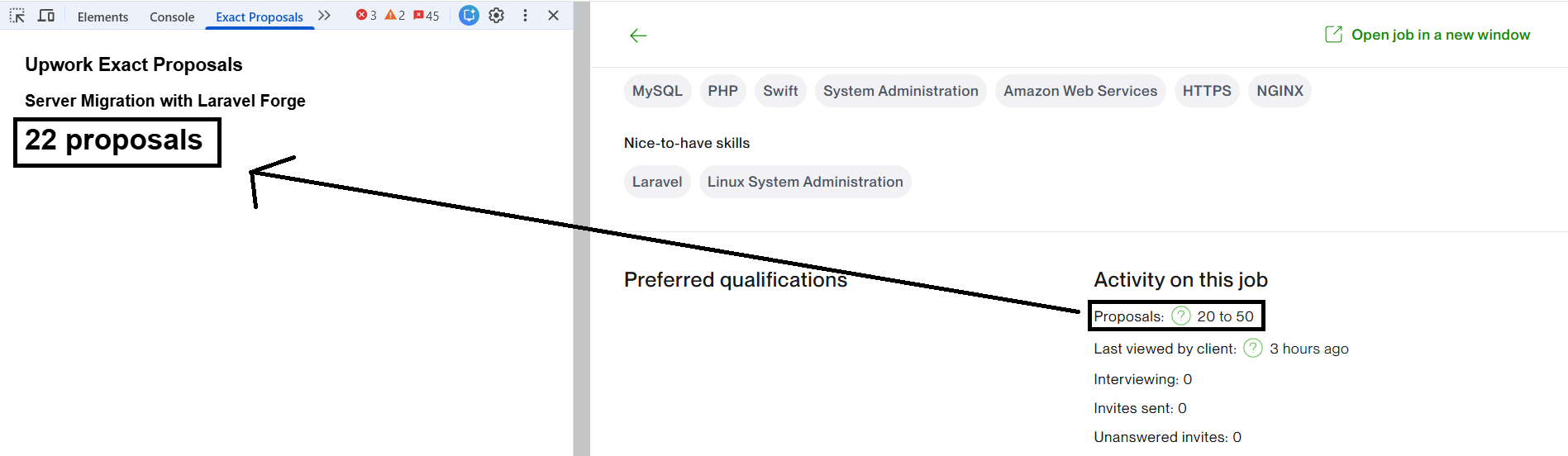
Upwork does not show you the exact number of proposals a job has received.
Instead, it shows ranges such as:
15 to 20
20 to 50
50+
But how many proposals has the job actually received?
If it says 20 to 50, is it 21, 34, or 50?
And if it says 50+, is it 51 or 101?
The exact number is available in the job data Upwork sends to your browser.
Upwork Exact Proposals is a Google Chrome extension that lets you see that exact number.
When you open an Upwork job, the extension reads the job details response that Upwork has already sent to your browser.
That response contains a value called:
totalApplicants
This is the exact number of proposals received on the job.
For example, Upwork may show:
Proposals: 15 to 20
While the extension shows:
Exact proposals: 19
The extension does not send another request to Upwork to get this information. It reads the response that Upwork has already sent to your browser.
Download the extension here:
Upwork Exact Proposals Google Chrome Extension
The extension will download as a ZIP file.
After downloading the extension:
You should now have a folder named:
upwork-exact-proposals
Open Google Chrome and enter the following in the address bar:
chrome://extensions/
Press Enter.
Turn on Developer mode in the top-right corner of the Extensions page.
Click Load unpacked.
Select the extracted:
upwork-exact-proposals
folder.
The extension should now appear in your list of installed Chrome extensions.
While you are on Upwork, press:
F12
or:
Ctrl + Shift + I
Chrome Developer Tools will open.
Refresh the page while Developer Tools is open.
This allows Developer Tools to start recording the requests made by Upwork.
Now open the job you want to check.
You may see something like:
Proposals: 15 to 20
Click the Exact Proposals tab in Developer Tools.
You will see the exact number of proposals received on the job.
For example:
Exact proposals: 19
So even though Upwork displays:
15 to 20
you now know that the job has received exactly:
19 proposals
The extension reads the network response that Upwork sends to your browser when loading the job.
Chrome provides access to that response through Developer Tools.
This means the extension can read the existing response instead of sending another request to Upwork.
No.
The extension does not make another GraphQL request to retrieve the proposal count.
It reads the network response that Upwork already sent while loading the job page.
It also does not:
It simply reads the existing job response and displays the exact number of proposals.
The proposal range shown by Upwork can hide a significant difference.
A job showing:
20 to 50 proposals
could have 21 proposals or 50 proposals.
A job showing:
50+ proposals
could have 51 proposals or more than 100.
Knowing the exact number gives you a clearer picture of how much competition a job has received before you decide whether you want to apply.
Instead of only seeing:
Proposals: 20 to 50
you can now open the Exact Proposals tab and see:
Exact proposals: 34
No guessing.
You can see the actual number of proposals received on the Upwork job.
If you’re looking to:
👉 Grow on Upwork
👉 Build a strong personal brand
👉 Enhance your web development skills
👉 Or simply navigate career decisions